
Image Features
Manage and edit game textures and images with powerful editing tools optimized for game development workflows.
Image Editor
A full-featured image editor built for game asset workflows. Edit textures, apply filters, resize to power-of-2 dimensions, and preview seamless tiling - all with full undo support.
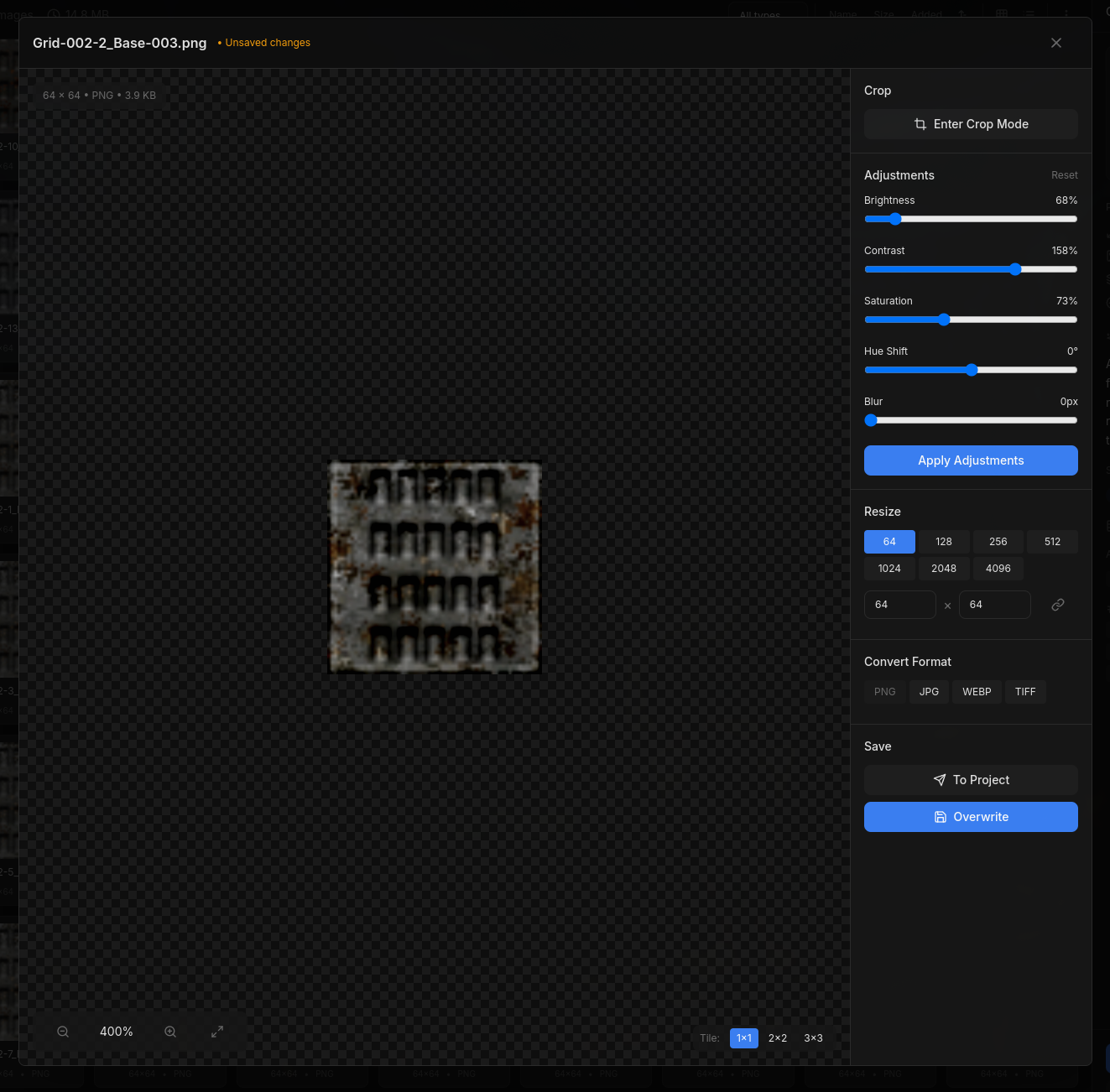
Color Adjustments
Real-time preview of adjustments with non-destructive editing. See changes instantly, then apply when ready.
Brightness
50% to 200% range. Lighten or darken the entire image.
Contrast
50% to 200% range. Increase or decrease tonal separation.
Saturation
0% (grayscale) to 200% (vibrant). Control color intensity.
Hue Shift
-180° to +180°. Rotate all colors around the color wheel.
Blur
0 to 10px. Apply gaussian blur for softening effects.
Live Preview: Adjustments are shown in real-time using CSS filters. Click "Apply Adjustments" to process the image with Sharp for final output.
Crop Tool
Precise cropping with aspect ratio presets. Zoom and pan to frame your crop exactly right.
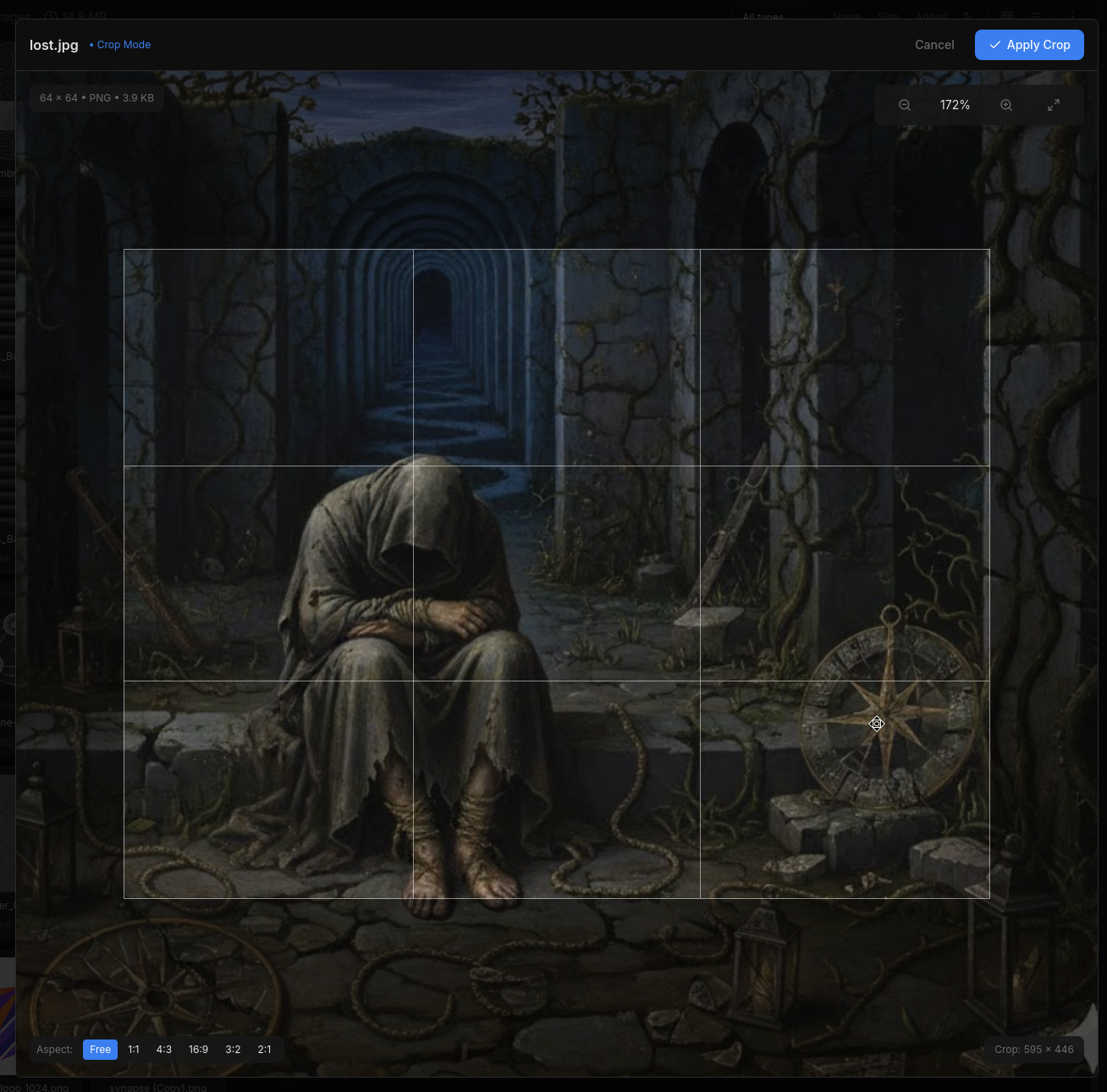
Aspect Ratios
Zoom Controls
Zoom 10% to 400% using mouse wheel or zoom buttons. Pan by dragging. Reset to 100% with one click.
Crop Dimensions: See the exact pixel dimensions of your crop selection in real-time before applying.
Tile Preview (Seamlessness Check)
Preview how your texture tiles when repeated. Essential for checking seamless textures before using them in your game.
1×1
Single image view
2×2
4-tile grid preview
3×3
9-tile grid preview
Seamless Check: Use 2×2 or 3×3 mode to spot seams at tile edges. If edges don't match, you'll see visible lines where tiles meet.
Quick Resize (Power-of-2)
One-click resize to power-of-2 dimensions - the standard for game engine textures. High-quality Lanczos3 resampling for sharp results.
Square Size Presets
Click any preset to instantly resize the image to that square dimension. Current dimensions are highlighted.
Custom Resize
Enter custom width and height. Toggle aspect ratio lock to maintain proportions or resize freely.
Lanczos3 Resampling
High-quality algorithm that preserves sharpness and detail during resize operations.
Format Conversion
Convert between formats with quality control. Perfect for optimizing assets for different platforms.
Supported Formats
Quality Slider
For lossy formats (JPG, WebP), adjust quality from 0-100. Default is 90 for a good balance of quality and file size.
Quality: 90%
Format Tips: Use PNG for sprites with transparency, JPG for large backgrounds without alpha, and WebP for web games where file size matters most.
Library Maintenance Tools
Quick access toolbar for common library operations when browsing your image collection.
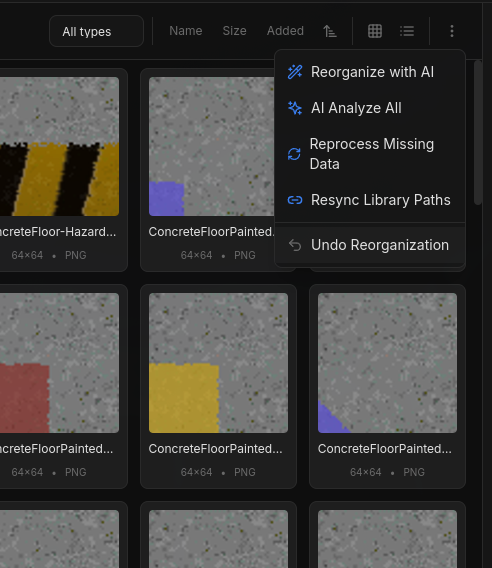
Undo & Save Options
Full undo history and flexible save options to protect your original files.
Undo (Ctrl+Z)
Step back through your edit history. Each operation (crop, resize, adjust) is tracked.
Save (Overwrite)
Replace the original file. A backup is automatically created before overwriting.
Save As
Save with a new filename in the same directory. Original file remains untouched.
Duplicate Detection
Automatic detection of duplicate and similar images using content hashing.
Exact Duplicates
Content hash detection finds identical files, even with different filenames.
Similar Images
Perceptual hashing detects visually similar images at different resolutions or formats.
Keyboard Shortcuts
Next: Explore AI Features
See how AI can analyze textures, detect types, and suggest optimal organization for your image library.
AI-Powered Features →